Marketplace Hub – Quick Instruction
Welcome to the Marketplace Hub!
The Marketplace Hub is a self-service system where Novacura Flow customers can independently browse our application catalog, select relevant applications, and - with just one click - either enable them instantly in their organization (Flow Connect) or download them (Flow Classic) for further import.
Below, we highlight the core functionalities of the new Marketplace Hub system.
You can also see how to log in here.
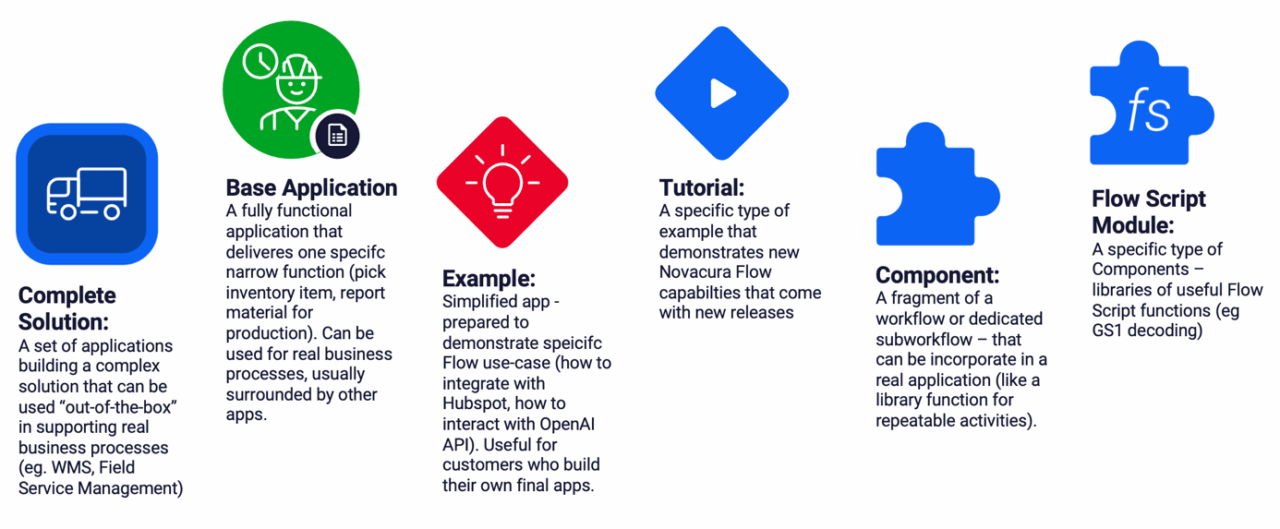
Types of Applications in the Marketplace
Before using the Marketplace, it’s important to understand the types of applications we provide. Not all of them are full applications, which is why we refer to everything as “Marketplace items.”
Below are the types of Marketplace items you can find and filter in the Marketplace:
Central Dashboard
The first thing you would see when you logged into Marketplace Hub is a big dashboard presenting all applications.
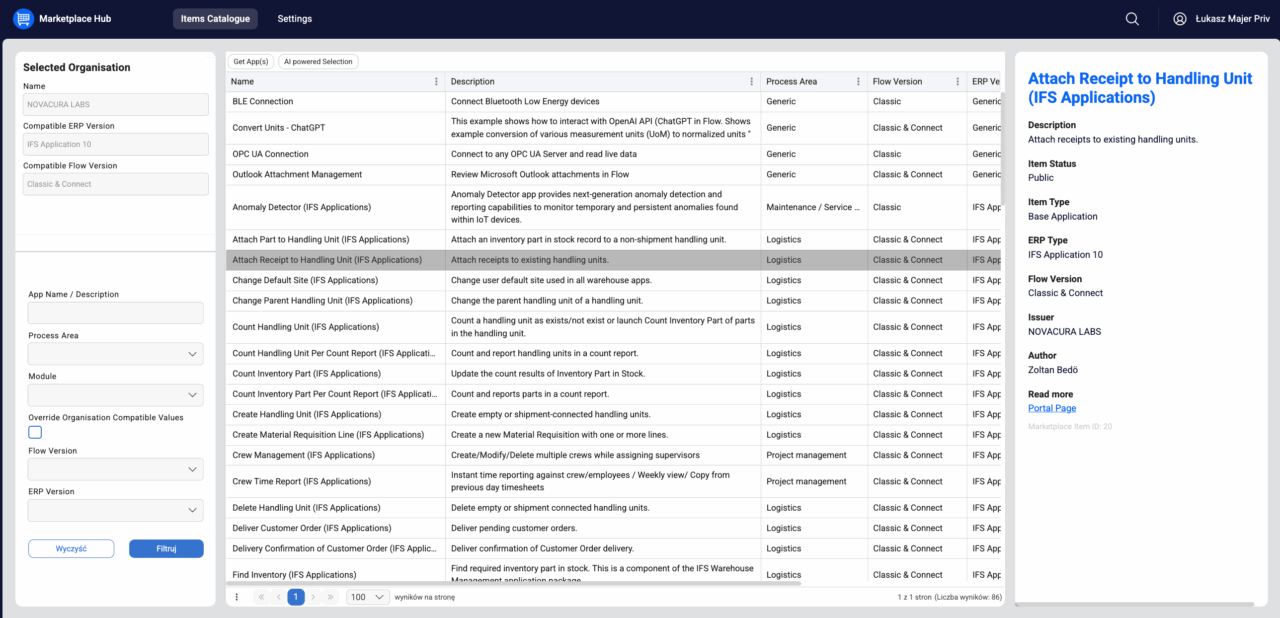
As you can see, the central list displays the Marketplace items available in the Marketplace.
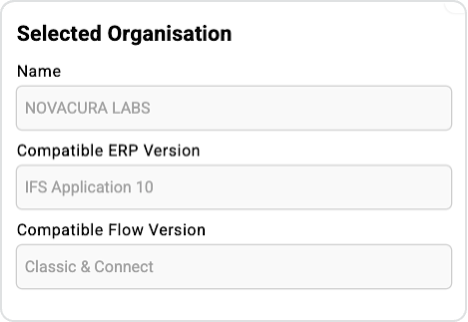
By default, the list only shows items that match your organization’s setup — they are compatible with your organization’s Flow version (Flow Connect or Classic) and your ERP type.
You can check your current configuration in the upper-left portlet:
Changing the Organization Configuration
You can update your organization’s ERP and Flow version by clicking “Settings” in the main menu.
This will take you to a separate page where you can modify and save your new settings.
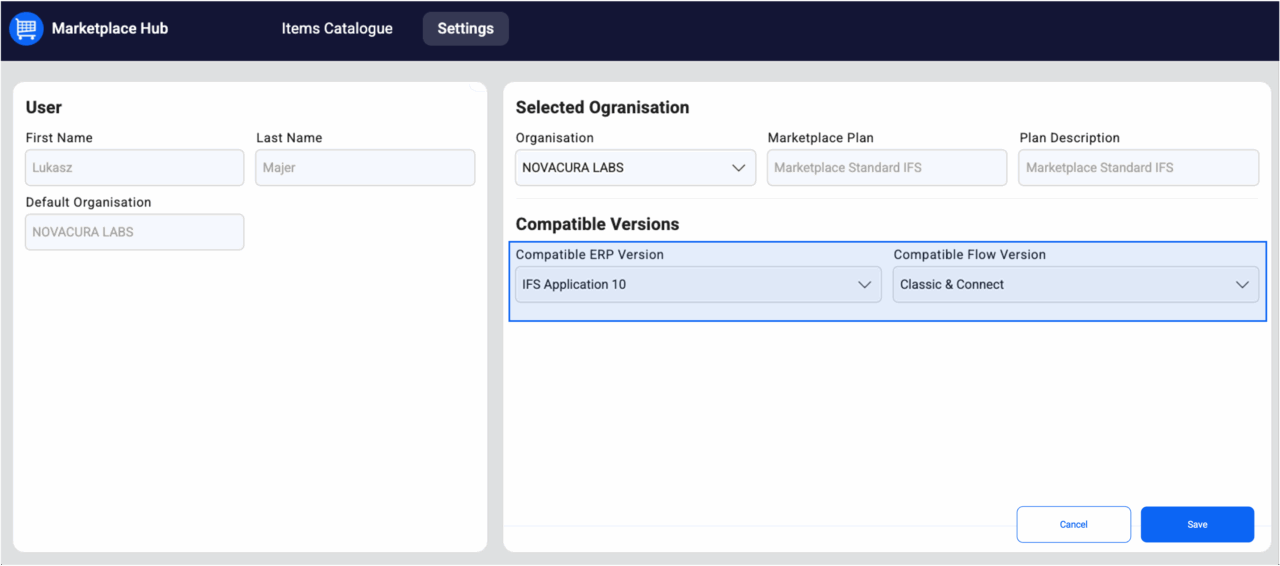
These settings will then be applied when you return to the Items Catalogue page, automatically filtering the catalog to show only apps that match your configuration.
Note: If your organization is currently migrating from Flow Classic to Flow Connect, you can select “Classic & Connect” as the Flow version. In this case, the Marketplace Hub will display both types of apps — those designed for Flow Connect and those for Flow Classic.
Filtering the Items Catalogue
By default, the list of Marketplace items is filtered according to your organization’s configuration. Here are a few important points to keep in mind:
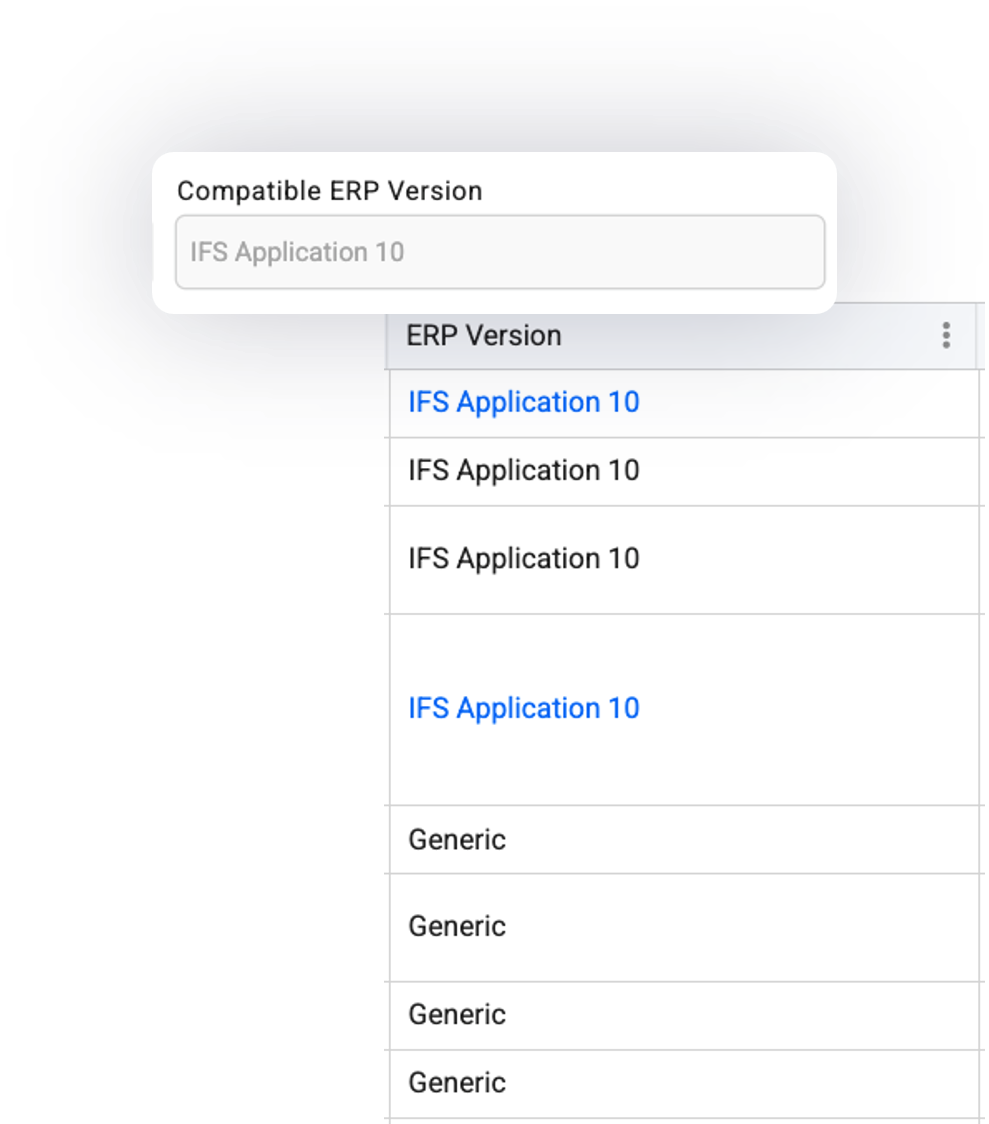
- No matter which ERP system will you choose for your company, you will always see the apps directly matching your ERP, and apps classified as “Generic”, applicable for all kinds of ERP systems (or ERP “agnostic”).
Flow version matching is not a strict one-to-one comparison. For example, if you select “Classic & Connect” for your organization, the list will show apps that support both versions, as well as apps designed only for Classic or only for Connect. Similarly, if you select “Connect”, the list will display apps for Connect as well as Classic & Connect apps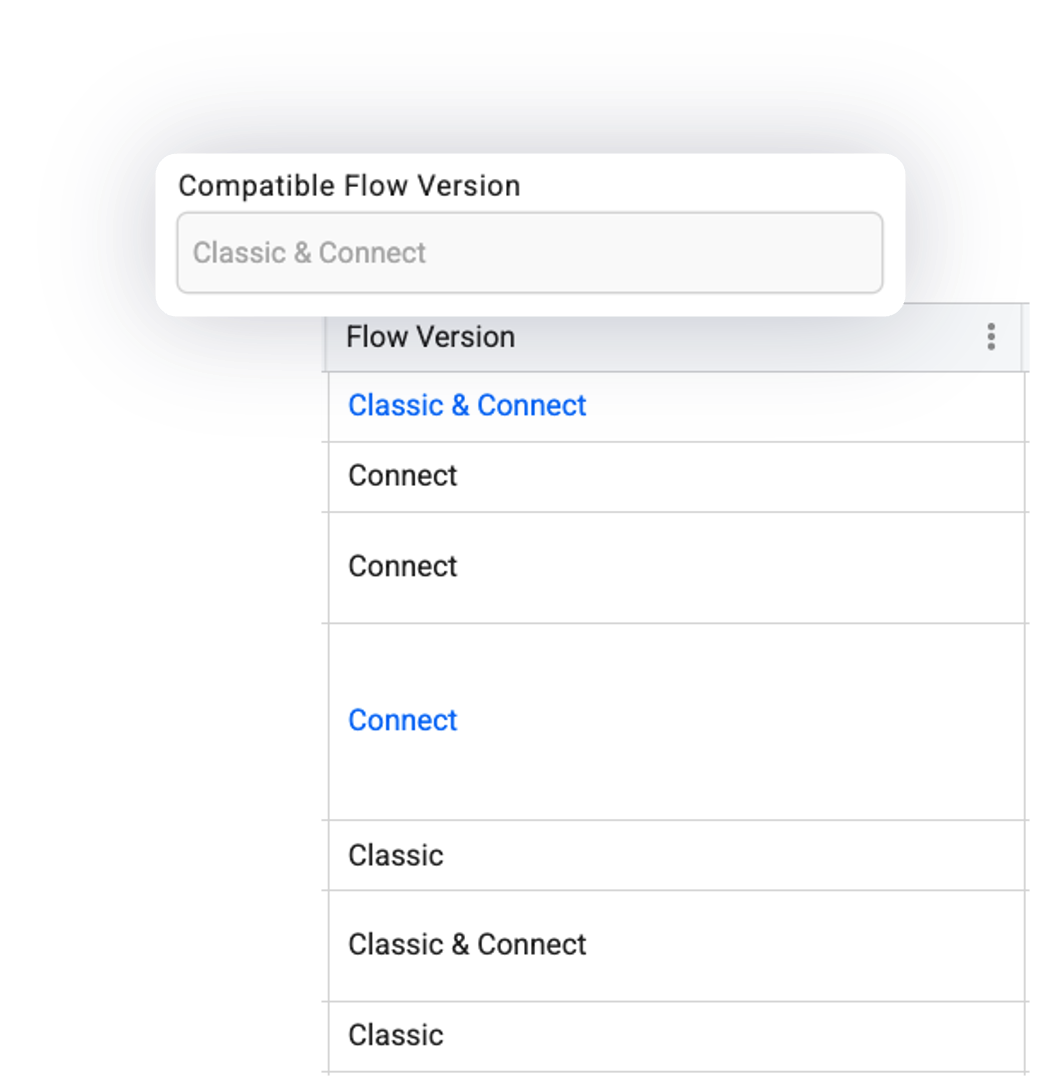 |
| - Regardless of which ERP system you select for your organization, you will always see apps that directly match your ERP, as well as apps classified as “Generic”, which are applicable to all ERP systems (ERP-agnostic). You can further refine the filter criteria using the filtering portlet located in the lower-left corner of the portal.
You can further refine your filter criteria using the filtering portlet located in the bottom-left corner of the portal.
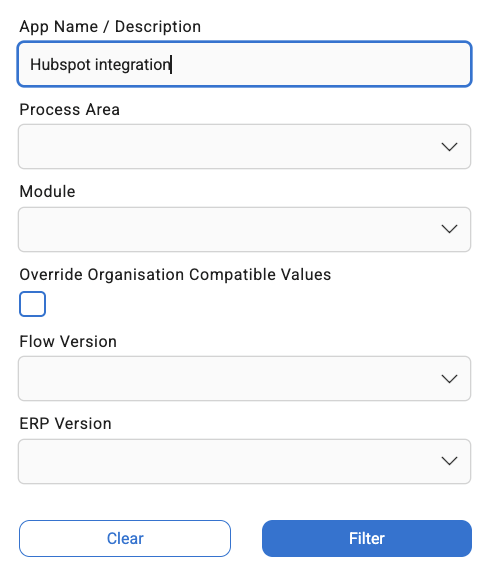
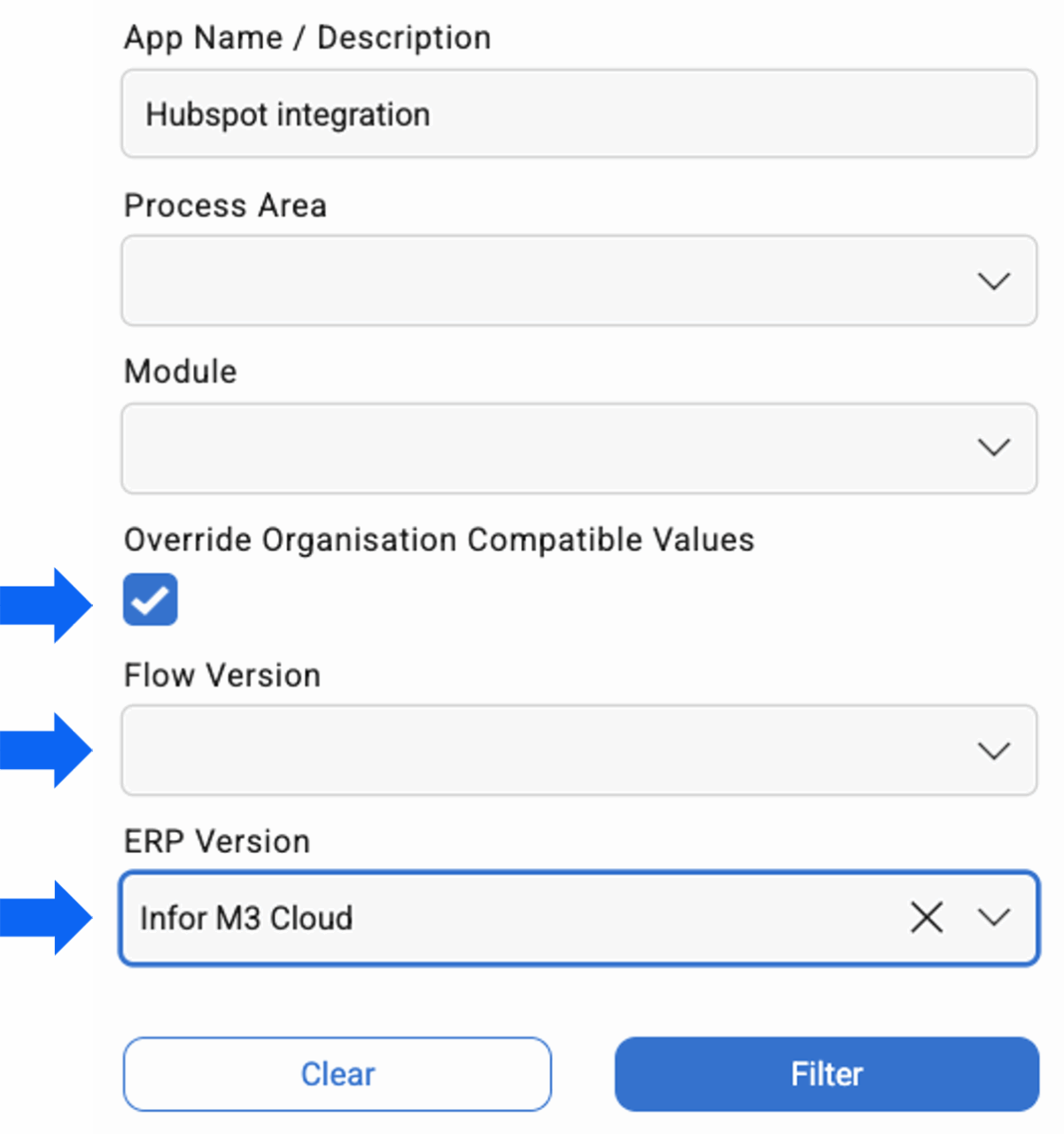
Keep in mind that this will only add additional criteria on top of the filters already applied based on your organization’s ERP and Flow version. To explore beyond the predefined criteria, simply select “Override Organization Compatible Values” and specify the Flow version or ERP version you’re interested in.
Getting Apps from the Marketplace
To quickly get the apps you need from the Marketplace, simply select one or more items and click the “Get App(s)” button at the top of the list.
The Marketplace Hub will detect your Flow version and suggest the appropriate approach:
Flow Connect – the selected items will be immediately transferred to your Flow Connect organization.
Flow Classic – the application will be downloaded to your computer, allowing you to import it later into Flow Studio.
Classic & Connect – if your organization uses both versions and the selected app supports both, the Marketplace Hub will prompt you to choose which Flow version you want.
Regardless of the option you choose, check your mailbox — additional materials (e.g., documentation, supporting scripts, or sample test data) may have been sent to help you use the application.
Transferring Apps to Connect
If you select Flow Connect, Flow Hub will ask you to choose the destination Application Package.
Next, you’ll be asked to map the connectors used in the application to the connectors configured in your destination organization. The application will attempt to propose a default mapping. Once you confirm the mapping, the application will be transferred directly to your organization!
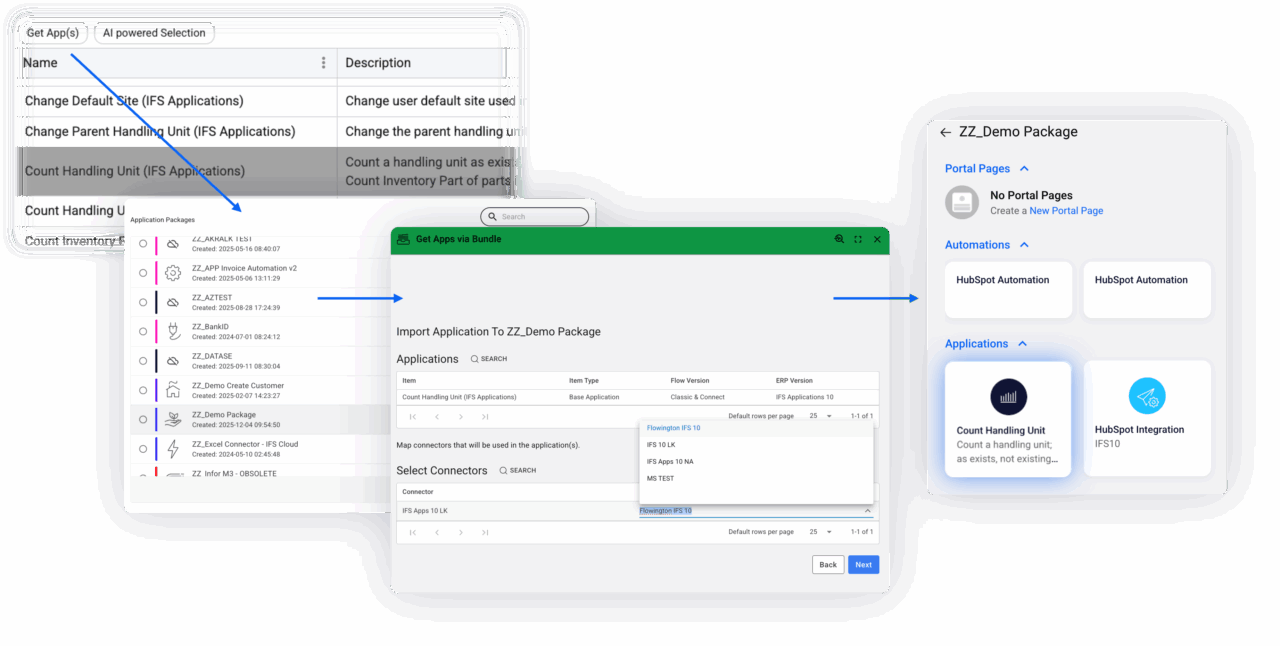
Note: The first time you do this, you may be asked to authorize yourself within your organization.
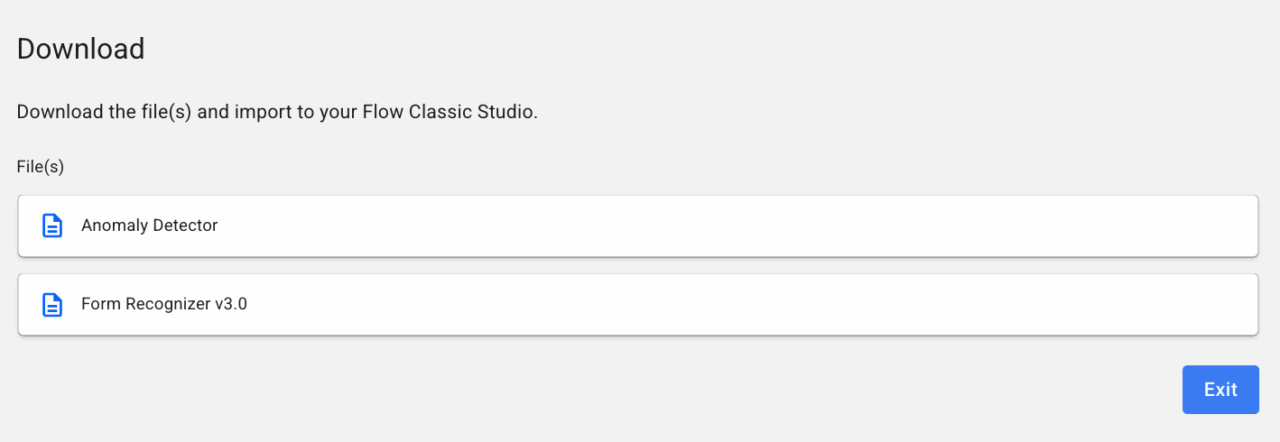
Transferring Apps to Classic
The Marketplace Hub will redirect you to a form where you can select and download each of the chosen apps.
Use AI to Find and Get Apps
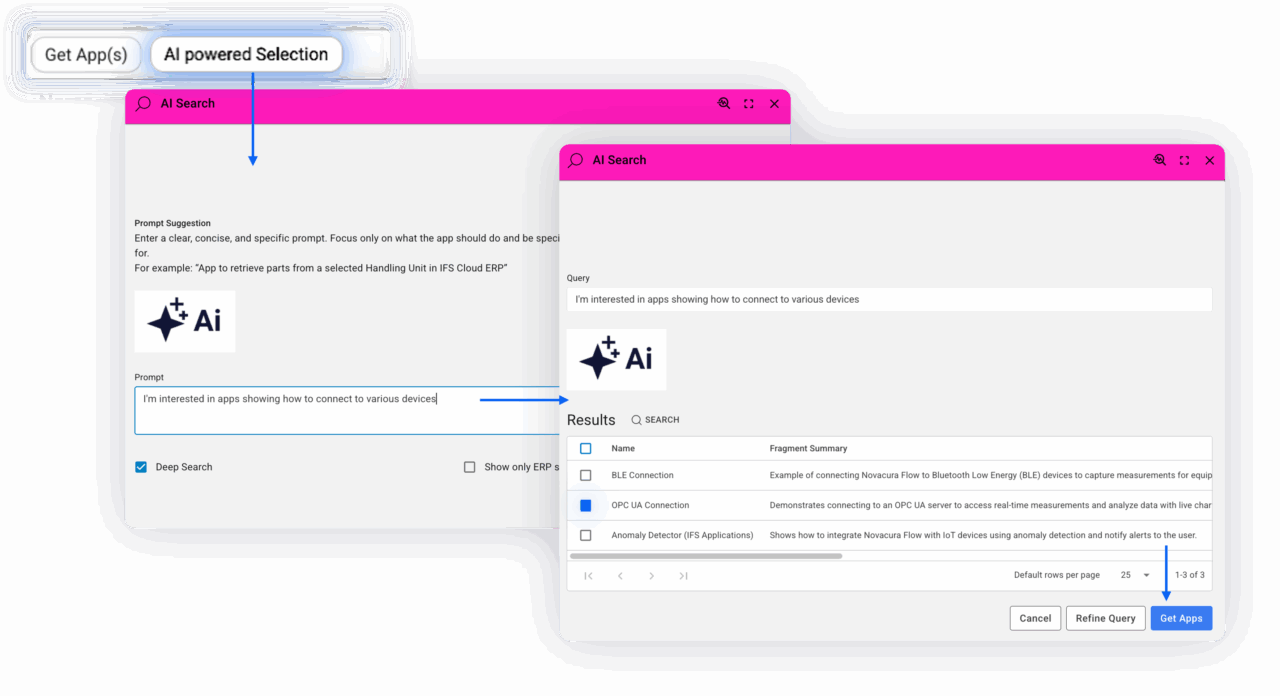
You can take advantage of the AI copilot built into the Marketplace Hub. Instead of manually filtering apps, simply use a free-text prompt to describe your needs and see what the AI copilot recommends.
You can choose whether the AI should only present items that best match your organization’s ERP or suggest any apps that match your query.
As a result, you’ll receive a list of apps that meet your requirements. You can then select one or more of them and get them in the same way as if you had selected them manually.
Marketplace Plans
Together with the Marketplace Hub, we introduced multiple Marketplace plans. Each plan includes a different set of applications—for example, standard plans are limited to Base apps, Examples, and Tutorials tailored to your ERP lineup*.
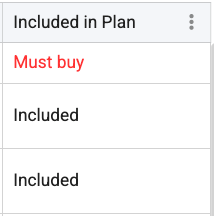
Regardless of the plan your organization uses, the list will always display all items and applications that match the selected filter criteria, whether or not they are included in your plan. You can easily identify items that are not part of your plan by checking the “Included in Plan” column:
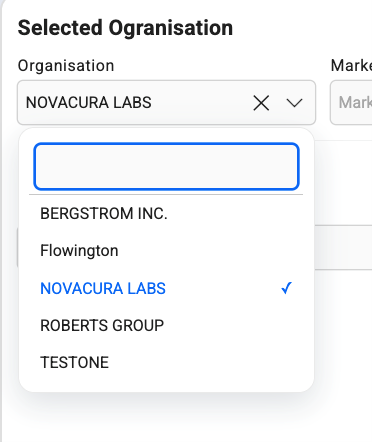
You can configure the ERP system and Flow version separately for each organization. This means that when you return to the Items Catalogue page after switching organizations, you may see a different list of items filtered specifically for the newly selected organization.
Keep in mind that the currently selected organization affects not only the default filtering, but also the Marketplace Plan (which determines access to specific apps) and the destination organization when getting apps from the Marketplace Hub.
Note: Apps cannot be transferred between organizations. If one of your organizations has a higher Marketplace Plan and access to more applications, these rights cannot be transferred to another organization. Access to each app is always validated against the currently selected organization, and the application transfer may be blocked.
Note: This feature is specifically designed for consultants and Novacura Partners who support multiple Novacura customers.